


In real estate industry, professional images can make or break a listing – and photo editing software is at the heart of that success. Every real estate photographer needs sharp, consistent, and visually engaging results that meet both buyer expectations and agency standards. With tighter budgets and faster turnaround demands, the search for free yet powerful editing tools has become more important than ever. The right photo editing software can streamline your workflow, enhance quality, and even support outsourcing when needed. Whether you edit in-house or collaborate with an external team, finding a tool that offers both usability and professional-grade precision is key.
What to Look for in Free Photo Editing Software
Before jumping into specific platforms, it’s important for a real estate photographer to understand what truly matters when evaluating photo editing software. Free solutions vary greatly, but the best share a few core features:
- RAW file support: Most real estate cameras shoot in RAW. Free editing tools should handle these large files smoothly.
- Batch processing: Shooting dozens of interiors and exteriors means you need to edit efficiently. Strong photo editing software lets you adjust multiple images at once.
- Color correction and lighting controls: Essential for balancing bright windows and dim corners.
- Cloning and retouching tools: Remove distractions like wires, outlets, or clutter with ease.
- Export flexibility: From web-ready JPGs to high-resolution TIFFs, your workflow depends on versatile output.
When a real estate photographer has software that covers these needs, every listing looks more polished, more marketable, and more likely to attract buyer interest.
Best Free Photo Editing Software Options in 2025
Here are the top free editing tools you can trust this year, each tested and valued by the real estate photography community.
1. Photopea (Web-Based)
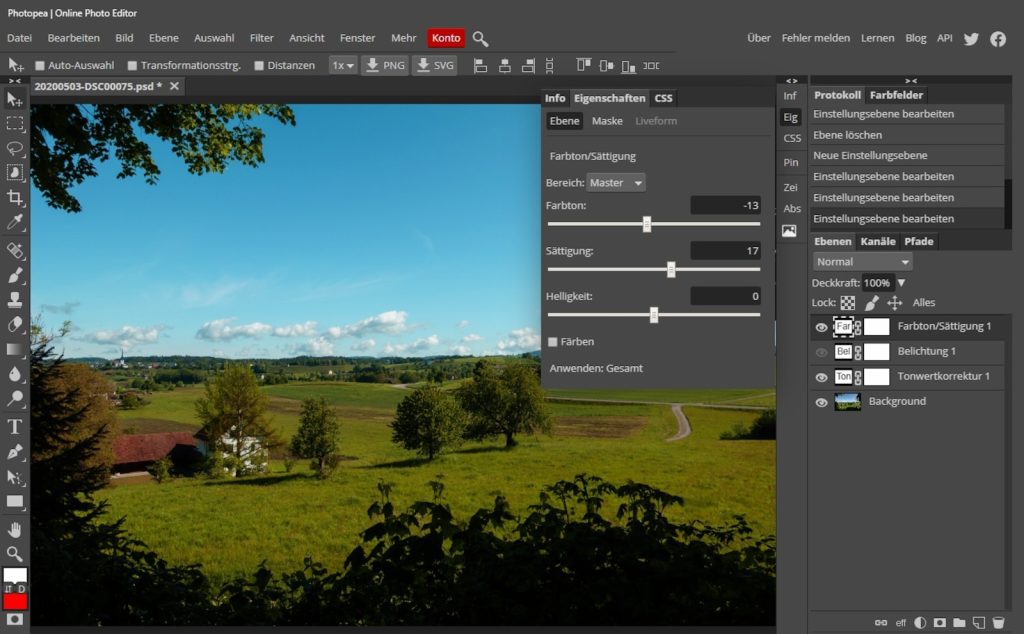
Photopea operates as a fully-featured web-based editor capable of handling PSD, XCF, SKETCH, PDF, and RAW file formats. It includes layer-based editing, color grading, text overlays, smart objects, clone/spot healing, and AI-powered background removal. It brings the full power of desktop design tools into any modern browser, making it especially valuable for users who work on different devices or need to share files easily.
Special Features
Photopea’s interface mimics Adobe Photoshop closely, offering users a familiar workspace with tools like magic wand, lasso, gradients, and layer masks. It supports advanced typography, adjustment layers, and smart objects, allowing for non-destructive edits. Photopea also lets you export files in multiple formats, including PSD, JPEG, PNG, and SVG.
Pros & Cons
The key benefit of Photopea is that it runs entirely in the browser, which eliminates the need for installation or updates. It’s platform-independent and available anywhere with an internet connection. However, performance can lag when working with large files or many layers, especially on older hardware. Also, free usage includes some banner ads, though they don’t interfere with the workspace.
Use Case
Photopea is ideal for creating marketing materials, adding branding to images, or preparing agent brochures. It’s also great for collaborative workflows where team members need access to edit or approve files online without requiring the same software.
Tips
Use layer groups to organize complex compositions. When exporting for website, use the “Export As” function and manually adjust quality and resolution settings. Take advantage of keyboard shortcuts for faster navigation and productivity.
2. GIMP (Windows, macOS, Linux)
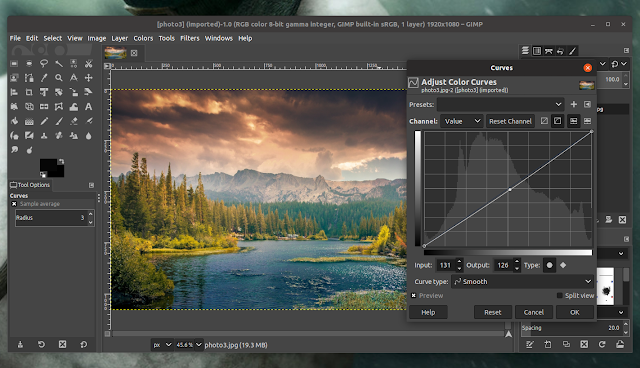
GIMP, short for GNU Image Manipulation Program, continues to be one of the most powerful open-source image editors available. In 2025, GIMP 3.0 introduced a significant overhaul of its user interface and engine performance, making it faster, more stable, and better equipped to handle high-resolution files. It’s particularly strong for photographers who require extensive manual control over layers, masking, compositing, and color grading without the cost of a premium tool.
Special Features
GIMP supports advanced photo retouching techniques, multi-layer editing, custom brush tools, paths, and precision color grading. It also has extensive plugin support, including G’MIC for applying batch effects, filters, and complex transformations. Its clone and heal tools are powerful enough for removing objects or distractions in architectural photos.
Pros & Cons
GIMP is completely free and supported by an active community. It handles high-resolution files very well and is ideal for detailed touch-ups and custom composite work. However, it has a steeper learning curve than most mobile or browser-based apps, and while it’s robust, some interface elements may feel less intuitive for new users.
Use Case
Best for photographers who want Photoshop-style control without licensing fees. Excellent for batch editing interiors, retouching exterior shots, or building branded flyers with layers and text.
Tips
Install the G’MIC plugin to unlock additional filters. Save files in .XCF format to retain layers for future edits. Use layer masks instead of erasing for more flexibility in your edits
3. Darktable (Windows, macOS, Linux)
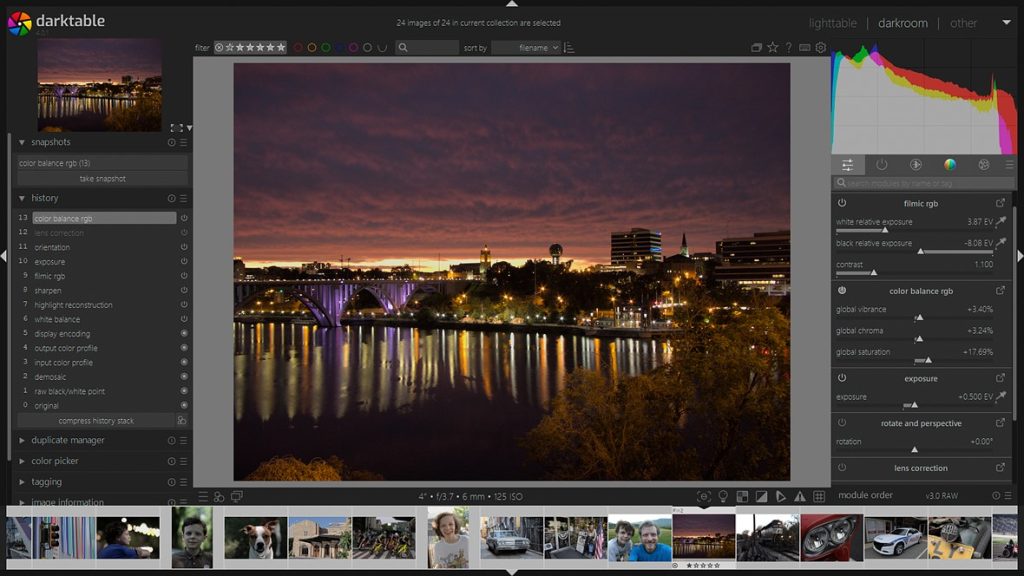
Darktable is a professional-grade RAW developer and photo organizer designed specifically for photographers. Often compared to Adobe Lightroom, it’s equipped with features tailored to high-volume editing and precision color correction. The 2025 version introduced even faster batch processing, AI denoising, and updated camera/lens profiles.
Special Features
Darktable supports non-destructive editing, powerful color management, lens correction, perspective adjustments, and tethered shooting. The software is modular, so you can customize the editing pipeline for specific needs. Its filmic RGB module offers exceptional tonal control.
Pros & Cons
Darktable is ideal for handling RAW files and is built to process hundreds of images at once. Its interface is professional, but may be intimidating to new users. It’s strictly a photo development tool, so it doesn’t support text or layout design.
Use Case
Best suited for real estate photographers needing to process large batches of RAW photos quickly and accurately, particularly those requiring consistent lighting, white balance, and distortion correction.
Tips
Use styles and presets to speed up workflow. Apply lens correction and noise reduction at the beginning of your pipeline. Export as TIFF for additional edits in other software like Photopea.
4. RawTherapee (Windows, macOS, Linux)
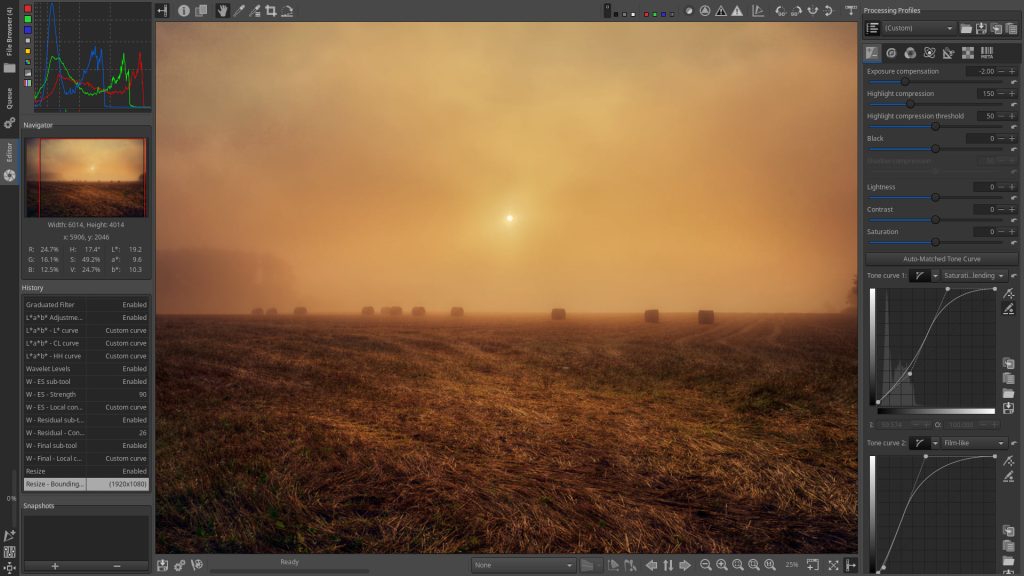
RawTherapee is another advanced RAW processing application that offers fine-grained control over image quality. Compared to Darktable, it focuses even more on demosaicing, color rendering, sharpening, and noise reduction, making it ideal for photographers obsessed with pixel-level fidelity.
Special Features
The software includes multiple demosaicing algorithms, advanced white balance and color correction tools, detail recovery, chromatic aberration correction, and shadow/highlight tuning. Batch processing is available through its queue manager.
Pros & Cons
Extremely detailed RAW control and support for virtually every camera file type. However, it lacks a built-in photo manager or text editing tools. Its interface is also more technical and less forgiving for casual users.
Use Case
Ideal for exporting perfect base images after RAW development. Often used in tandem with GIMP or Photopea for further enhancement and branding.
Tips
Use “Inspect” view for checking sharpness and detail recovery. Save parameter snapshots for future use. Start with basic exposure and white balance before using color and detail modules.
5. Fotor (Web, Windows, macOS, iOS, Android)
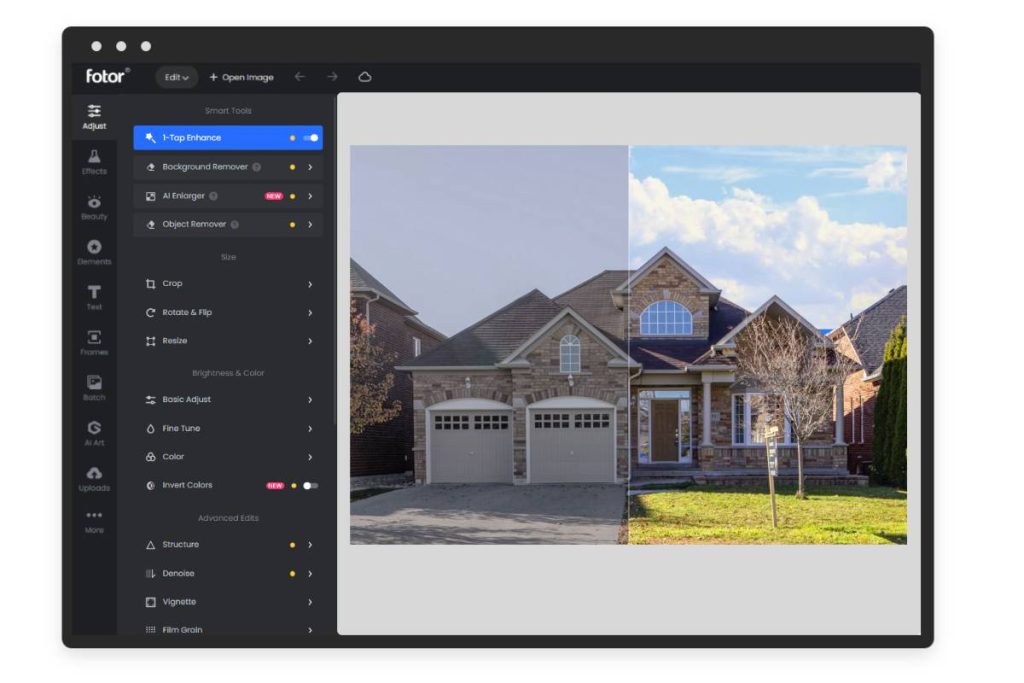
Fotor offers a more beginner-friendly approach to photo editing and is especially useful for photographers creating marketing materials. It supports one-tap enhancement, background removal, collage building, and design templates, all in a free-to-use model.
Special Features
Fotor includes AI tools for portrait retouching, sky replacement, and object removal. It has built-in HDR rendering, text overlays, and design layouts for flyers and social posts. Its interface is easy to learn and cloud-based for accessibility.
Pros & Cons
Excellent for quick edits and creative layouts, but may lack the depth professionals require for detailed retouching. Some advanced features are locked behind a paywall, and the free version may add watermarks.
Use Case
Best for producing branded deliverables like listing flyers, just-sold graphics, and quick fixes to social media posts.
Tips
Use the AI enhancer for fast global edits. Start with a flyer template to save time. Export at the highest resolution to avoid compression artifacts.
6. Snapseed (iOS & Android)
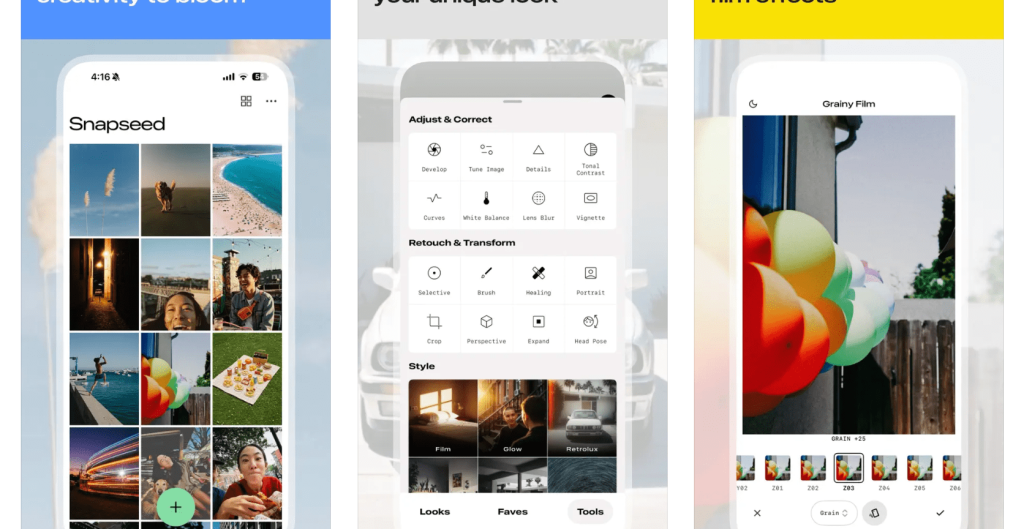
Snapseed remains the ultimate mobile photo editor in 2025, particularly after the milestone Snapseed 3.0 update released in June 2025. This update introduced a refreshed interface optimized for tactile editing, a new “Faves” toolbar for quick access, 31 film-inspired filter presets, deeper RAW controls, arced sliders, and tighter integration with cloud photo libraries. Whether you’re shooting twilight exteriors or interior details, Snapseed delivers desktop-level control in your pocket.
Special Features
Snapseed includes enhanced RAW editing capabilities that rival entry-level desktop software, including white balance control, selective adjustment brushes, and advanced perspective correction. The healing tool enables quick cleanup of small blemishes or distracting objects in a room, while the structure and detail sliders let you emphasize texture in architectural shots.
Pros & Cons
One of the biggest advantages of Snapseed is its speed and simplicity. The interface is clean and responsive, and every tool is easy to find and intuitive to use. It also does not require any payment or in-app purchases, making it accessible for everyone. However, Snapseed does not support layers or advanced masking, which limits its use for more complex compositions. Additionally, since it’s mobile-only, it’s not ideal for high-volume batch editing.
Use Case
Snapseed is best suited for real estate photographers needing to do quick, on-site adjustments such as correcting exposure, fixing white balance, or straightening lines before sending previews to clients. It’s also useful for posting directly to social media from your phone without needing to transfer files to a computer.
Tips
To get the most out of Snapseed, begin your edit by correcting geometry using the Perspective tool, then move into tonal adjustments. Use the Selective tool to fine-tune brightness or saturation in specific zones like windows or ceilings. Finally, export a high-resolution JPEG or TIFF for future processing.
Final Thoughts
Choosing the right photo editing software depends on your goals as a real estate photographer. Free editing tools like GIMP, Darktable, RawTherapee, Paint.NET, and Canva each provide valuable features that help you deliver professional, market-ready images without major costs.
With consistent use of these tools, you can streamline your workflow, enhance your photos, and maintain strong client satisfaction. For real estate professionals balancing budget and quality, free software is no longer a compromise. It’s a competitive advantage.
Imagtor helps real estate photographers take their visuals to the next level with advanced photo editing, video services, and virtual staging. Start today with a FREE TRIAL and enjoy 10% OFF your first project!

Flambient photography has become the go-to lighting technique for serious real estate photographers in 2026. It combines the natural light range of HDR with the color accuracy of flash, producing interior images that look clean, warm, and genuinely believable without the over-processed look that heavy HDR editing creates. This guide covers what flambient photography actually …

Interior real estate photo editing is where most of the work happens after a shoot. Getting exposure, color, and detail right across a full gallery is what separates listings that actually get clicks from ones that get skipped past. This guide covers the core techniques professionals use, in the order they actually matter, so every …